Guide
How to Free Up Space on Mac
Space you can safely review is space used by your own files. System folders stay in place, and a backup comes before any removal.
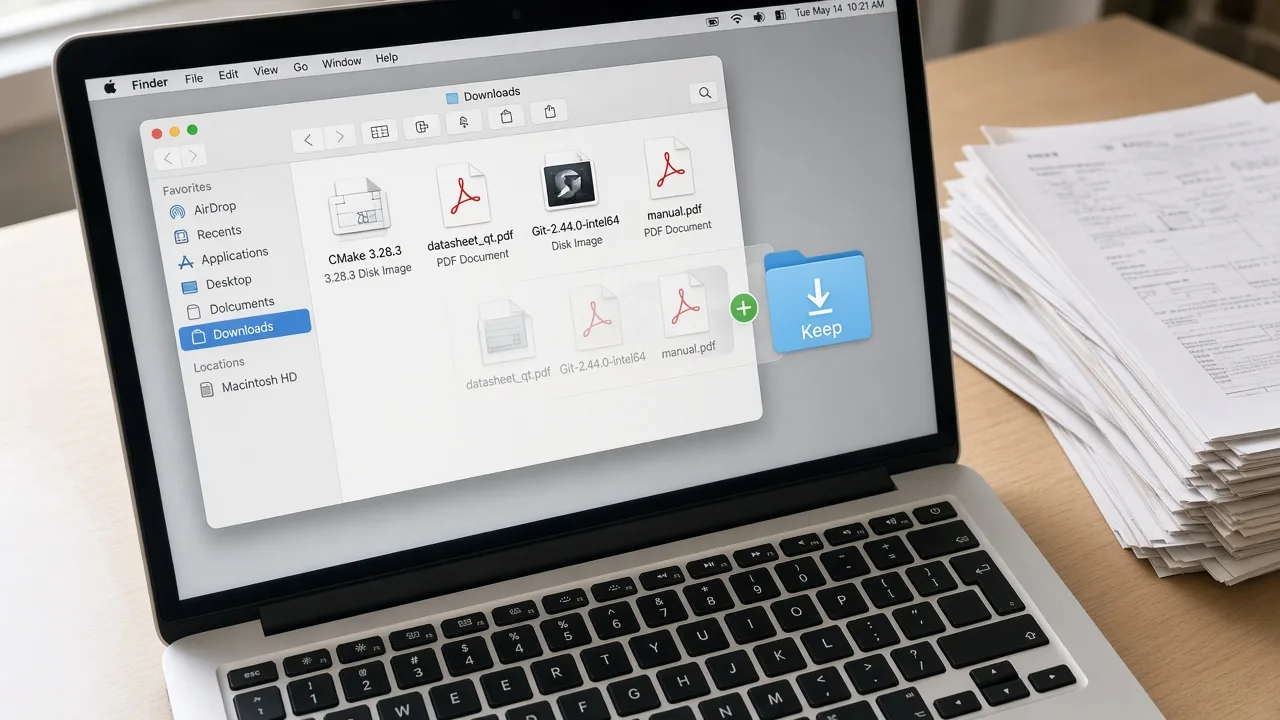
People look up how to free up space on Mac when a disk warning appears or when Downloads has become a second hard drive. The practical work is a review of files you saved, not a sweep of the operating system.
Review large user files
Start with Documents, Desktop, Movies, and Downloads. Sort by size in Finder list view. A screen recording, a camera card you already copied, or an exported video is often the largest item you can decide about. If the size column does not show folder totals, turn on Calculate All Sizes in View Options.
Keep a Review folder for files whose names do not mean anything yet. Do not empty that folder to chase a number.
Organize downloads
Treat Downloads as an inbox. Once a week, move files you still need into the project folder they belong to, and leave installers you already used in a short “ready to remove” list. Check that the application is installed and that you still have the license or account before you remove the installer.
Identify duplicates you recognize
A duplicate is a second copy you can point to, not every file that shares a word in the name. Compare the original in Documents with the copy in Downloads. If both dates matter—an edited version and the file you received—keep both and name the edited one. Remove a copy only after you have opened it or matched its size and date.
Archive older documents
Finished tax years, closed client jobs, and exported reports can move to an Archive folder or to a drive you already use for storage. Archiving is a move. It frees space on the Mac only when the copy leaves the internal disk. Confirm the copy opens on the other drive before you remove the original.
Personal files you no longer want
Old screenshots, duplicate photo exports, and drafts you have replaced are the usual candidates. Decide file by file or folder by folder. macOS will not restore them from the Trash after you empty it.
Safety, and what “faster” does not mean
- Back up with Time Machine or your existing backup before you delete.
- Do not remove files from /System or other folders required by macOS.
- Do not type commands you found on a forum to “purge” caches you do not understand.
Some articles describe this as Mac optimization or a way to speed up Mac performance. Freeing space used by your files can remove a disk warning. It does not guarantee a faster Mac, and this site does not sell that outcome. For the storage view itself, readhow to clean up Mac storage. For training you apply yourself, see Mac Storage Management Guidance.