When everything is in the wrong folder
Learn a folder map for the personal or business files you want to trust.
Open this trainingServices
MacStartup teaches individuals and businesses how to organize documents, photographs, desktop items, and the folders around them. A request is reviewed before any consultation is agreed. You organize your own files. MacStartup does not delete them for you.
Each page teaches a different collection of your files. Some people want a general folder structure. Others already know the pile: photographs, business documents, a crowded desktop, or storage used by downloads and old exports.
The guides explain a small sort you can do alone. Training is a personalized explanation when the collection is larger. You still make every move and every deletion yourself.
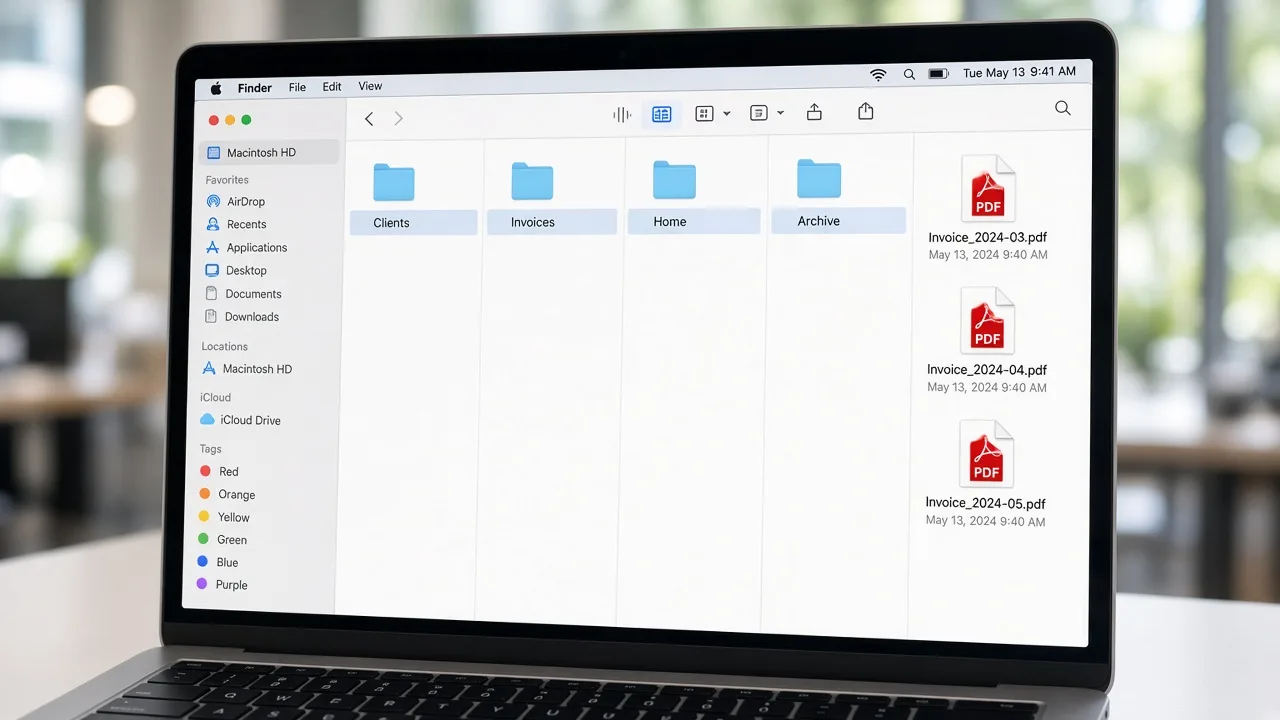
Learn how to build a folder structure for documents, exports, downloads, and project files so you can keep using it after the training.
Learn how to read the space taken by downloads, exports, and old copies, then decide what you will archive, move, or remove.
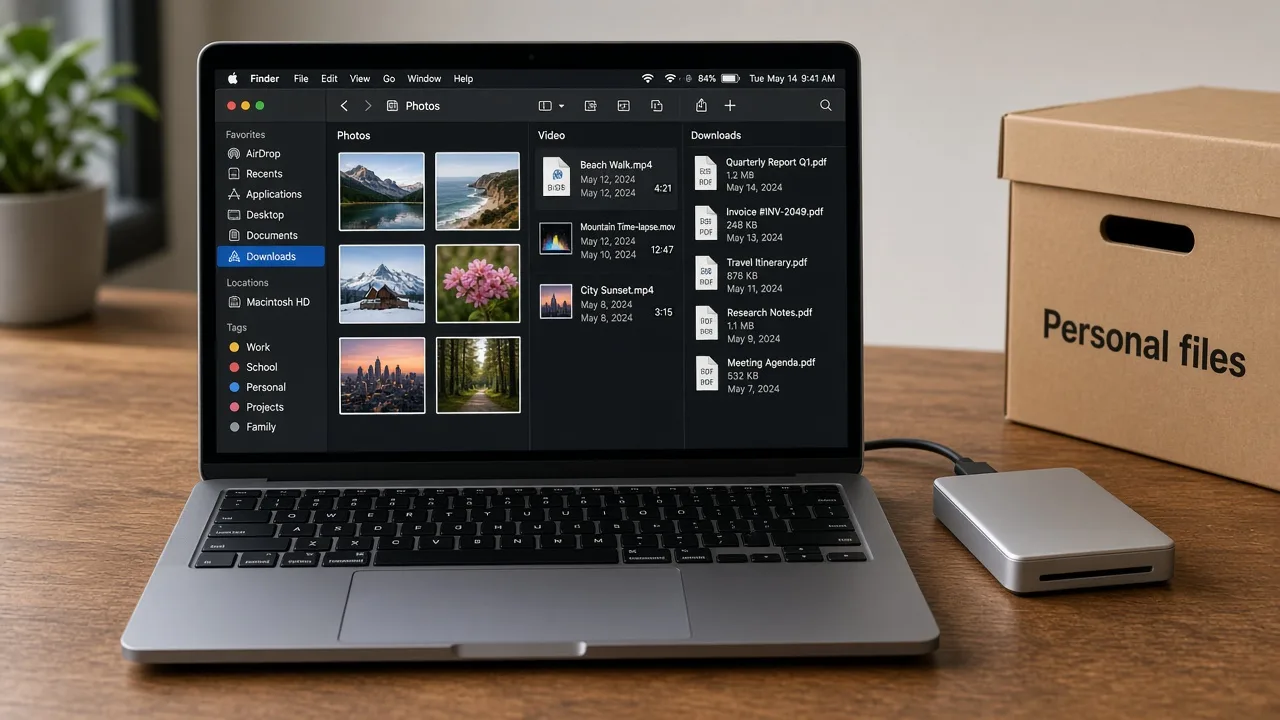
Learn how to group photographs you keep on the Mac so events, clients, and family sets are easier to browse than one camera-roll dump.
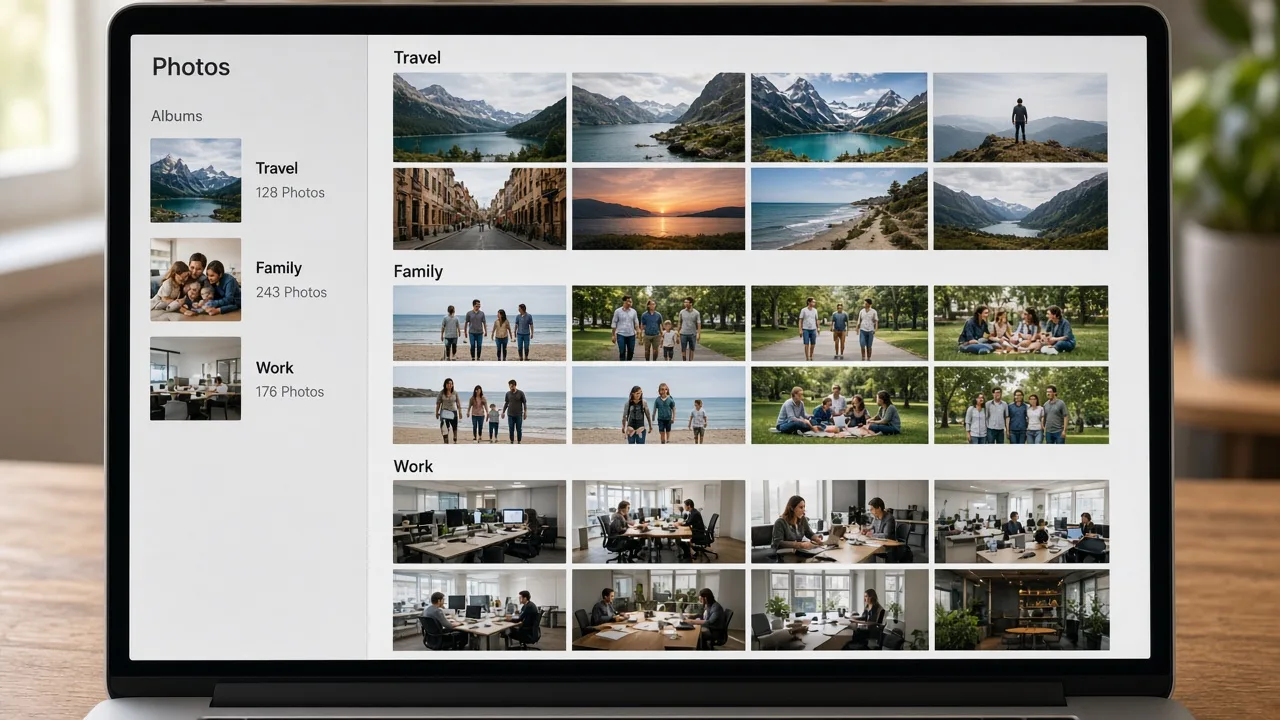
Learn how to put PDFs, scans, and working documents into folders that match how you actually refer to them.
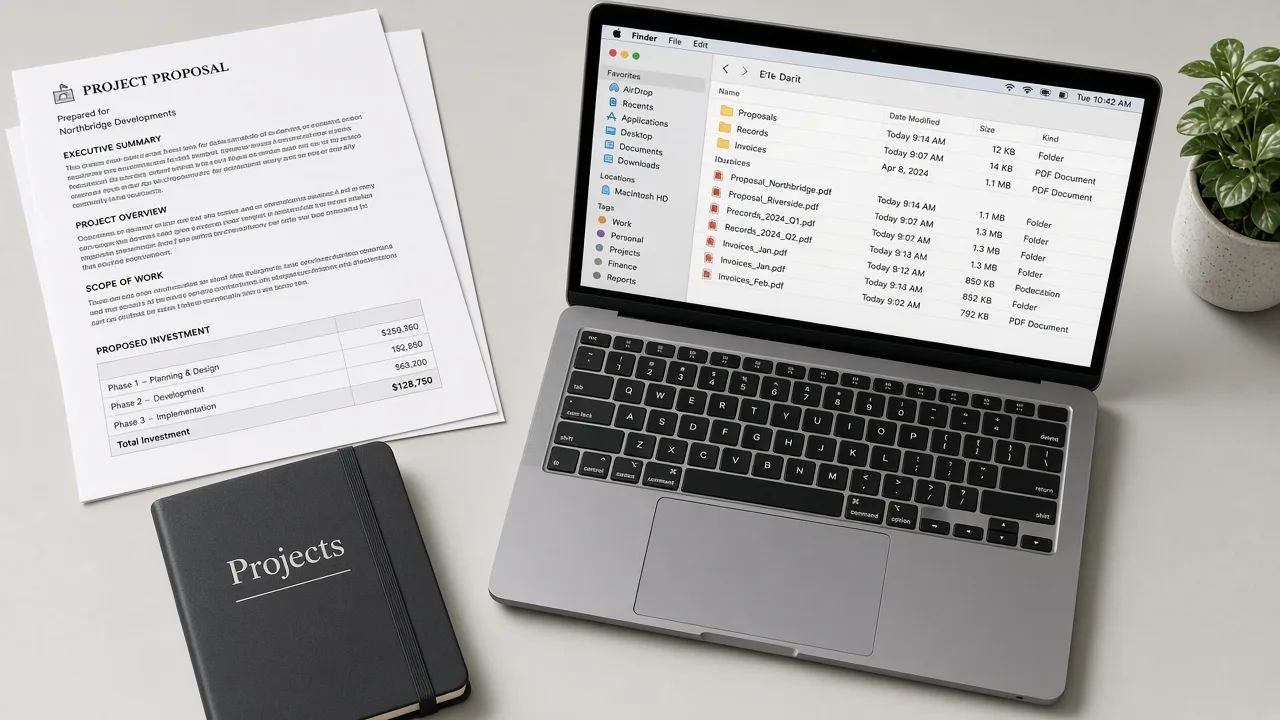
Learn how to take files off a crowded desktop and give Downloads, Documents, and project folders a layout you can maintain.
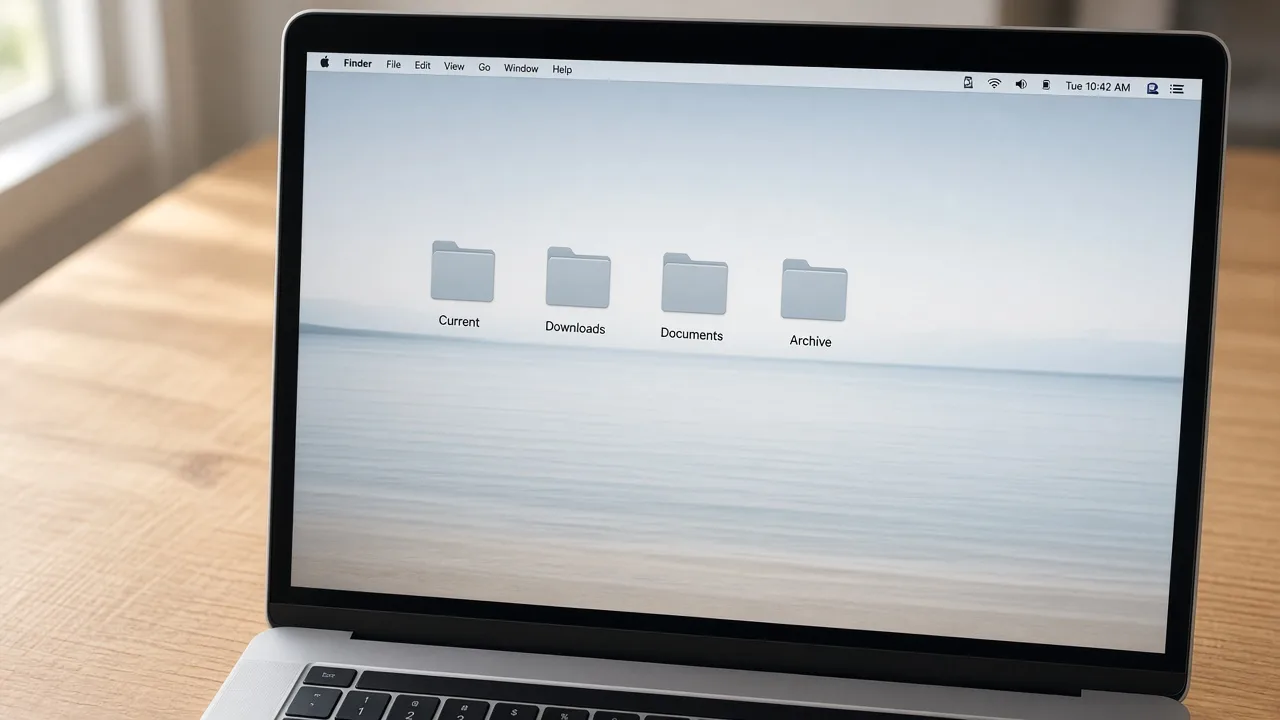
Not sure which page fits? Use these practical comparisons.
Learn a folder map for the personal or business files you want to trust.
Open this trainingLearn to sort photographs by event, year, or client before you decide what to keep.
Open this trainingLearn a few destinations for Downloads and the desktop, and leave unknown files alone.
Open this trainingHow to choose a topic and what a consultation request means.
Start from the files in front of you: a general file mess, storage used by your own files, photographs, documents, or a crowded desktop. If that split is unclear, choose Not Sure and describe what you want to learn.
Yes. That is the point of the guides and the training. The guides explain folder grouping, storage review, and photo sorting. A consultation is optional when you want a personalized explanation.
No. Do not send passwords, Apple ID details, payment cards, or remote-access credentials. The form asks what you want to learn, not for the files themselves, and MacStartup does not sign in to your Mac.