Training

Mac Photo Organization Training

Learn how to turn a pile of pictures into sets you can name: a trip, a job, a year, a person.
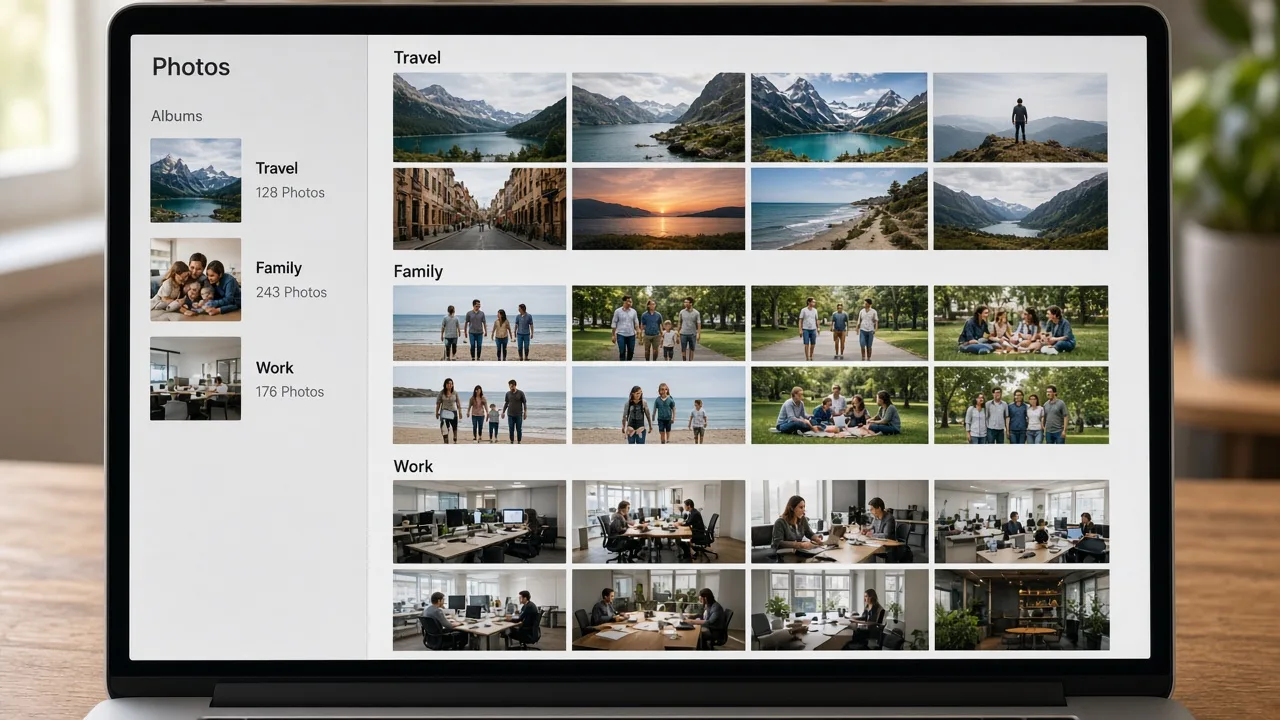
The photograph shows an example of grouped albums. It is not a view of your library and not a product screenshot.

Training for photographs you already have

Photo organization training covers image files you store on the Mac: exports, scans, camera cards copied into folders, and pictures sitting on the desktop. The aim is groups and names you understand, not a score for how many files were removed.

If you also use the Photos app, the training explains what to consider before you change that library. MacStartup does not merge libraries or delete originals. Pictures that look alike still need you to confirm they are the same shot.

How photo collections get stuck

  • Years of imports share one folder named with a camera model
  • Edited exports sit next to originals with no way to tell them apart
  • The same event was copied onto the desktop more than once
  • Family and work pictures share a single stream

What photo training can include

  • A grouping approach such as year, event, client, or subject
  • How to compare near-duplicate exports before you choose one to keep
  • Folder or album names written in ordinary language
  • A rule you can reuse for the next import
  • Follow-up inside an agreed scope

How a photo training request proceeds

  1. 1

    Say what the pictures are for

    A family archive, client shoots, or a mix changes the grouping you practice.

  2. 2

    Locate the folders you mean

    You identify desktop dumps, Downloads, and external copies before anything moves.

  3. 3

    Review suggested groups

    You check names and examples before you make a large move.

  4. 4

    Keep or remove yourself

    A duplicate stays until you delete it. Training does not remove it for you.

The photograph shows an example of grouped albums. It is not a view of your library and not a product screenshot.

Why grouped photos are easier to live with

The photograph shows an example of grouped albums. It is not a view of your library and not a product screenshot.

  • Open an event without scrolling a decade of imports
  • Keep work pictures out of a family folder
  • Tell originals and exports apart by where they live
  • Give the next card import a destination

Before you remove a file

  • Back up pictures before you reorganize them. Do not assume a sync service already has every file.
  • Similar file sizes do not prove two photos are duplicates.
  • This training does not recover deleted photos and does not repair a damaged library.

Questions about this training

Practical limits of the guidance, including what is not included.

Will MacStartup change my Photos library?

No. You make any change in Photos. The training explains the decision; it does not edit the library.

Can a business use this for client images?

Yes. You can practice grouping client shoots by job name or date. You still choose any file you remove.

Will organizing photos make the Mac faster?

No. The result is a library you can browse. It is not a performance service.

Related training

Request Mac Photo Organization Training

Describe what you want to learn. Submitting the form does not confirm a booking, and MacStartup does not organize files on your Mac.